Concept creator
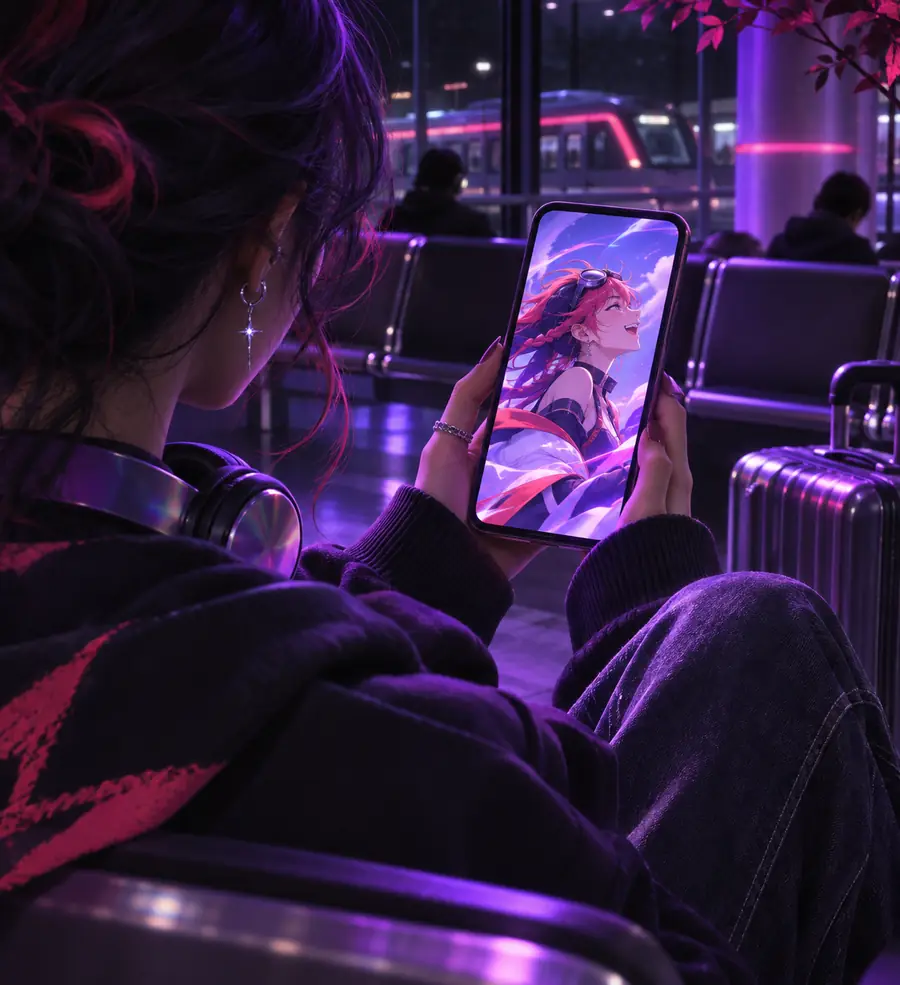
You have a scene idea while away from your main workstation and want to capture the direction before it disappears.
Turn a rough thought into a concise visual brief that is easier to review later.
Mobile workflow
This guide to roboneo for android focuses on the decisions that matter on a phone or tablet: access, preparation, prompt clarity, and realistic workflow limits. Use it as a planning reference before moving from an idea to a video task.
Use cases
Android access is most useful when the task is clear and the next action can be completed from a phone or tablet. These examples keep the workflow grounded in familiar creative situations.
You have a scene idea while away from your main workstation and want to capture the direction before it disappears.
Turn a rough thought into a concise visual brief that is easier to review later.
You are checking a short-form concept between shoots and need to refine its subject, setting, or mood.
Keep creative decisions moving without waiting to return to a desktop setup.
You need to discuss a visual direction with collaborators using a mobile screen.
Present a focused prompt and identify what needs changing before production.
You are collecting references, character ideas, or scene notes during location work.
Organize the next generation request around a specific subject, action, and atmosphere.
Surface comparison
The right surface depends on where you are in the process. Android is convenient for capture and review, while a larger screen can make detailed comparison and editing easier.
| Android device | Desktop setup | |
|---|---|---|
| Primary strength | Portable access for prompts, notes, and review | More room for detailed visual comparison |
| Input style | Touch keyboard, voice input, or pasted text | Physical keyboard, mouse, and larger workspace |
| Best moment to use it | Ideation, quick revisions, and on-location checks | Longer sessions and careful quality review |
| Screen context | Compact display with limited simultaneous detail | Larger display for side-by-side inspection |
| Network dependence | Needs a dependable mobile or Wi-Fi connection | Usually relies on a stable Wi-Fi or wired connection |
| Working comfort | Useful for short, focused interactions | Better suited to extended creative sessions |
| Handoff | Can capture a direction for later continuation | Can consolidate multiple references in one view |
Choose a surface
Start with the surface that matches your immediate need, then keep the prompt and review criteria consistent as the work moves between devices.
Phone
A phone is well suited to writing a compact request, checking a result, and noting one or two changes. Keep the prompt concrete so the small screen does not become a barrier to careful direction.
Tablet
A tablet gives a little more room for references, notes, and visual comparison while preserving the mobility of Android. It can be useful when a task needs more context than a phone comfortably provides.
Desktop
A desktop setup can be the better continuation point when you need a larger view, a longer session, or more deliberate comparison. The creative direction should remain consistent across the handoff.
Before you begin
Preparation reduces avoidable friction. Check the essentials first, then decide how much detail the task actually requires.
An Android phone or tablet with a current browser or supported access method — Use the access path presented by the service.
A stable internet connection — Generation and media review may depend on network quality.
A clear subject, action, and setting for the video request — Specific direction is easier to review than a vague idea.
Enough battery for the session — Longer creative work can be inconvenient on a low charge.
Reference images or written notesoptional — Helpful when consistency matters across revisions.
A larger screen for final comparisonoptional — Optional, but useful for detailed review.
Workflow example
The visual pair below represents a planning transition: begin with a loose direction, then make the subject, action, and atmosphere easier to evaluate.
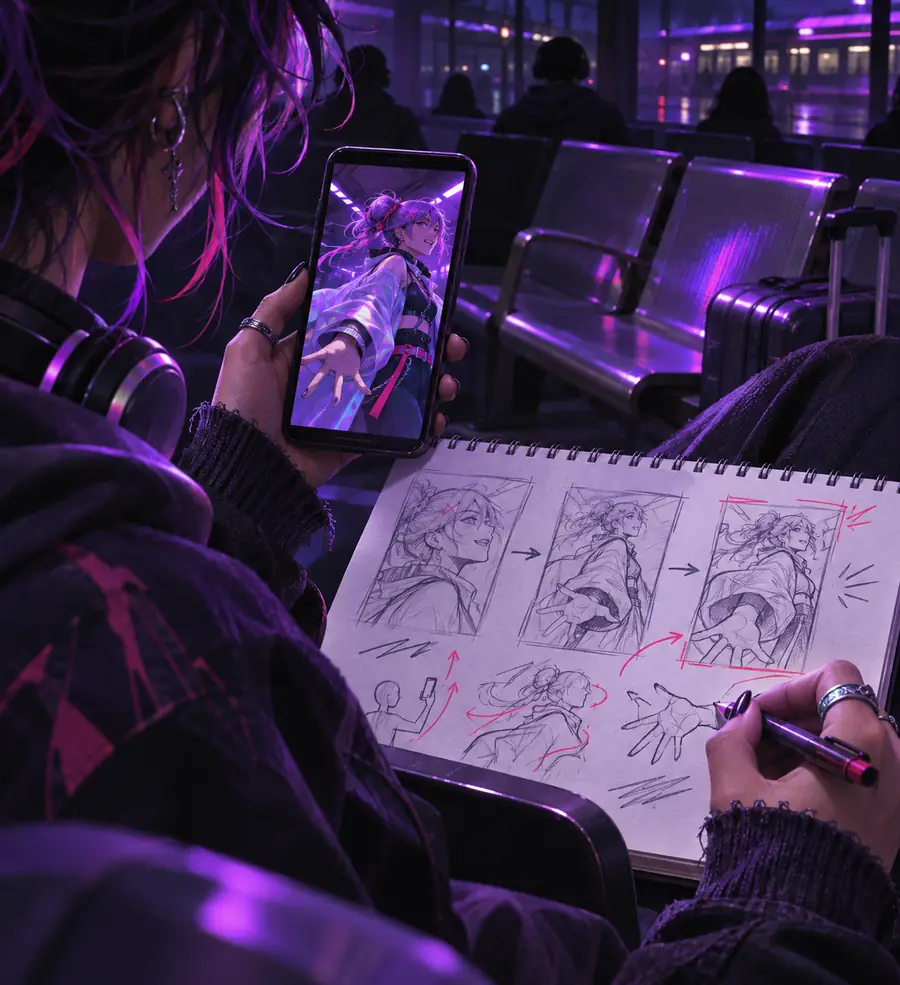
Illustrative pair; results depend on the request and available controls.
Rough directionRefined directionHow it works
Keep the first session focused. The aim is not to solve every creative decision at once, but to create a direction you can inspect and improve.
Write the subject, action, setting, and visual mood in plain language. Remove details that do not affect the immediate result.
Send the request through the available workspace, then review whether the main subject and action match your intention.
Change one meaningful element at a time, such as framing, movement, lighting, or environment, so the next result is easier to assess.
Know the edges
Mobile access is convenient, but it does not remove the practical limits of screen size, connectivity, or creative direction.
Phone-sized views can make subtle differences in framing, texture, and continuity harder to judge.
What to do instead
Use a tablet or desktop screen when detailed comparison affects the decision.
An unstable mobile connection can delay submission, loading, or review.
What to do instead
Move to a dependable Wi-Fi connection before a longer session.
A mobile device does not compensate for an unclear subject, action, or setting.
What to do instead
Write the core request first, then add only details that change the intended scene.
Extended typing, reviewing, and revising can be less comfortable on a phone.
What to do instead
Capture the direction on Android and continue detailed work on a larger screen.
Next step
When the subject, action, and setting are ready, open the workspace and begin with the smallest useful request. You can review the direction before deciding what deserves another pass.
FAQ
These answers address the practical questions people commonly ask when looking for a mobile route.
The safest approach is to use the access method currently presented by the service rather than assume a dedicated app is available. Check the workspace on your Android device and follow its supported browser or app instructions.
An Android phone can be useful for preparing prompts, reviewing visual results, and making focused revisions when the service supports mobile browser access. Screen size and connection quality may affect how comfortable the session feels.
A tablet can provide more room for references, notes, and comparison while keeping the workflow portable. A phone is often enough for short requests and quick checks, while a larger display is better for detailed review.
Prepare a stable connection and a concise description of the subject, action, setting, and mood. Optional references or notes can help when you need consistency across revisions.
A practical workflow is to capture or refine the direction on Android, then continue on a larger screen when comparison or extended review becomes important. Keep the approved prompt and revision notes together so the handoff stays clear.