Storyboard artists
You know the camera path or subject action before the visual style is settled.
Test a movement-first idea without writing a complete production brief.
Focused video control
roboneo motion control gives creators a focused entry point for describing how a subject, camera, or scene should move. Start with one clear movement idea, then refine the visual direction from there.
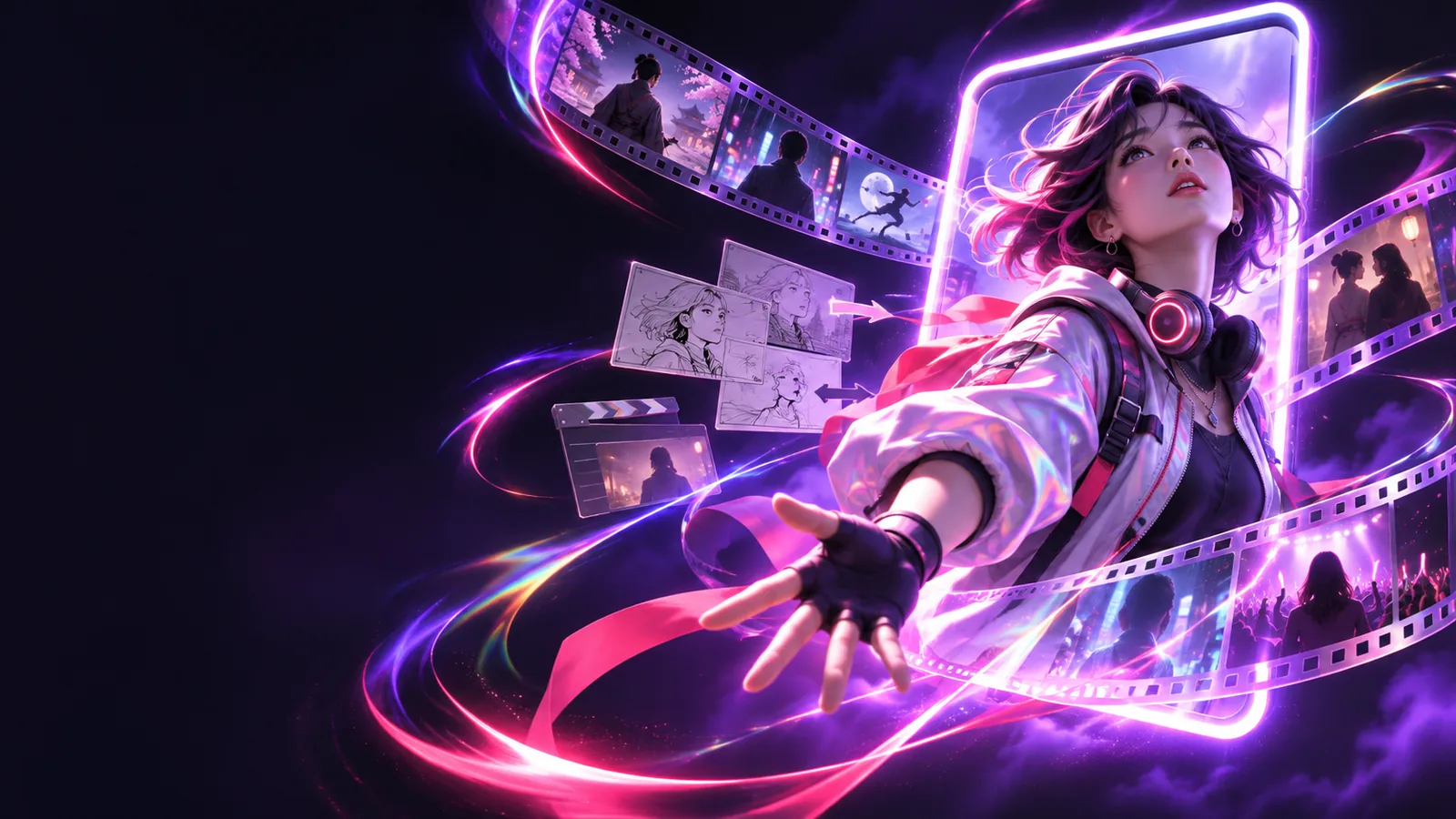
Choose the right route
The focused route is useful when movement is the main creative decision. Use the broader video workflow when the scene, subject, and overall treatment need equal attention.
You know the camera path or subject action before the visual style is settled.
Test a movement-first idea without writing a complete production brief.
A short clip needs a deliberate push-in, orbit, reveal, or lateral move.
Turn a single motion direction into a more actionable starting prompt.
You want a product to rotate, emerge, pass through frame, or remain visually centered.
Keep the requested movement prominent while shaping the surrounding scene.
A director and editor need to discuss movement in plain language before polishing details.
Create a shared motion brief that is easier to review and revise.
A simple starting loop
Think of this route as a compact direction-setting pass: name the subject, describe the movement, and add the visual conditions that keep the instruction understandable.
Start with the person, object, or scene that should carry the action. Keep the subject concrete so the movement has a clear reference point.
Use an observable verb such as orbit, pan, follow, rise, reveal, rotate, or pull back. Add pace or direction when it matters.
Mention the setting, framing, light, or mood that should remain present while the motion unfolds.
Set expectations
A focused prompt can clarify motion, but it cannot replace every production decision. These limits help you decide when to keep the brief narrow and when to switch workflows.
Natural-language movement can suggest an orbit, push-in, or tracking shot, but the resulting path may vary from the wording.
What to do instead
Describe the direction, subject relationship, and pace together, then review the result and simplify the instruction if needed.
A strong movement instruction may still change small features, background elements, or subject details between outputs.
What to do instead
Keep the subject description consistent and avoid adding unnecessary visual changes to the same prompt.
This route helps shape a motion idea; it is not a substitute for cuts, timing adjustments, transitions, or final sound design.
What to do instead
Use the generated concept as a visual reference before completing the edit in your usual tool.
Words like dynamic, cinematic, or exciting do not explain what should move or where the movement should lead.
What to do instead
Replace broad adjectives with one subject, one movement, and one visible destination.
Prompt by intention
Different audiences can begin with the same movement vocabulary while emphasizing a different creative outcome.
Camera
Describe how the camera relates to the subject and what the viewer should notice as the shot develops.
Subject
Put the subject first when its movement is more important than the camera. This works well for reveals, gestures, product rotations, and entrances.
Atmosphere
Add setting, light, and tone after the action is clear. These details support the motion without burying the core instruction.
See the direction
The strongest prompts separate movement from decoration. These visual references show how to build a concise instruction that still leaves room for a distinct scene.
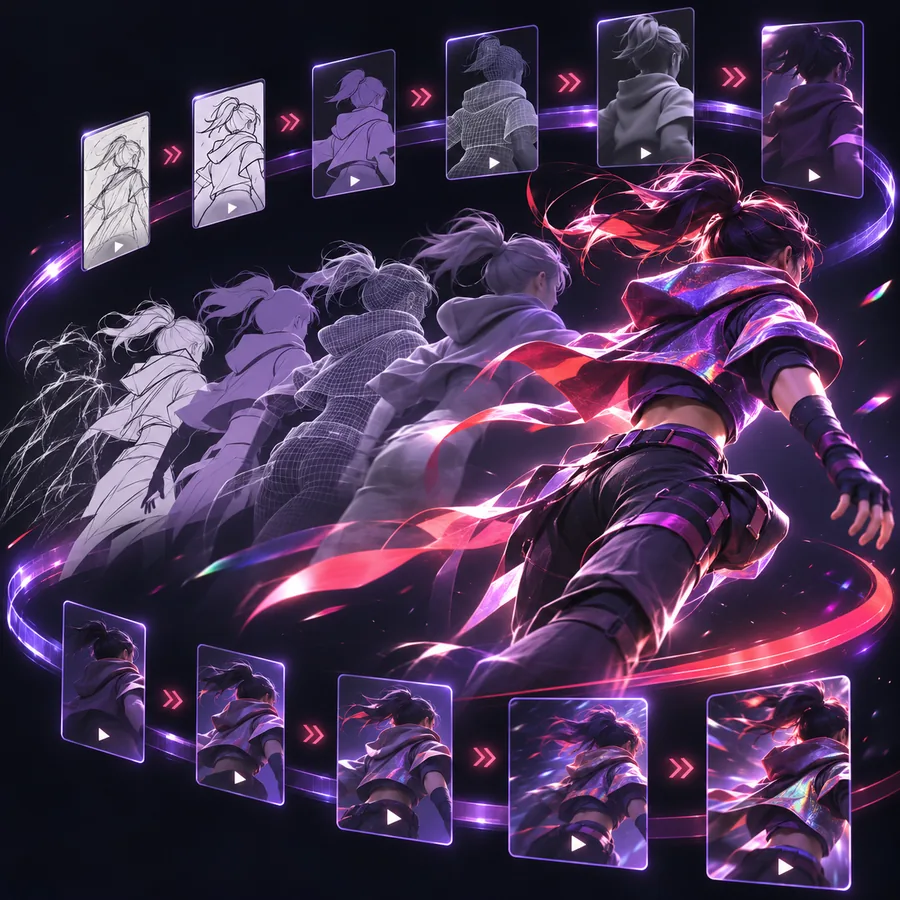 01 · Action
Step 1
A useful motion brief tells the viewer what changes in the frame. Begin with the movement itself, then identify the subject that makes it legible.
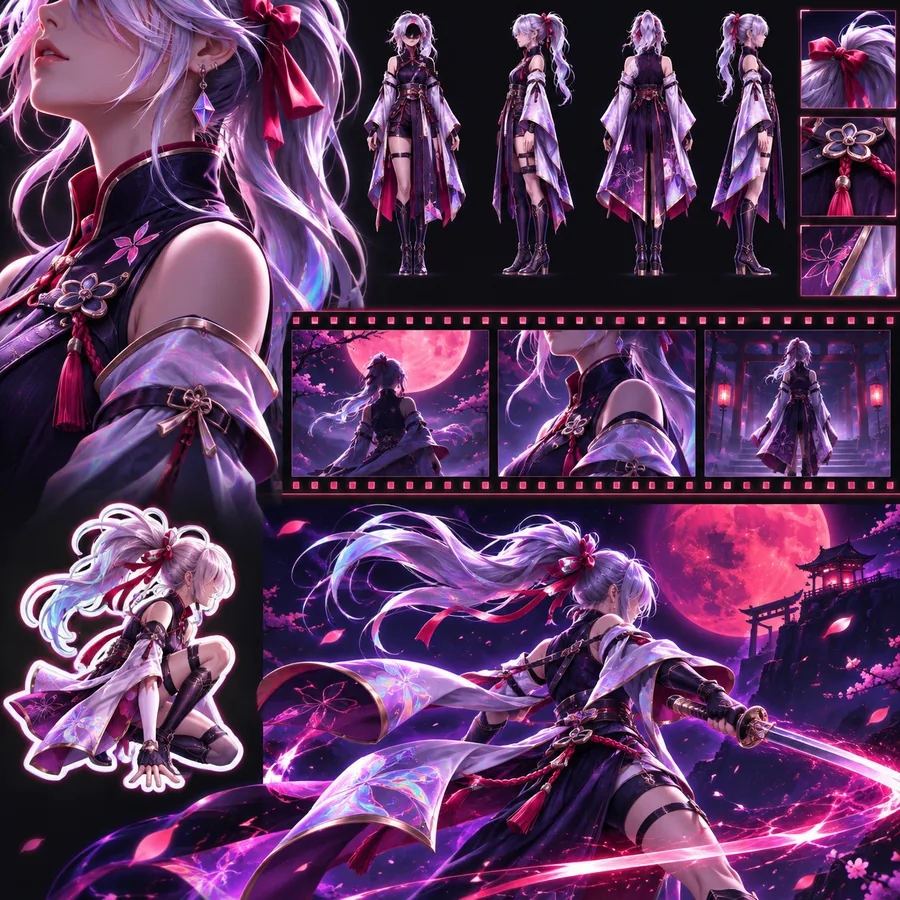 02 · Direction
Step 2
Movement becomes easier to interpret when it has a direction and a rhythm. Words such as slow, rising, lateral, close, or gradual can narrow the creative intent without overloading the prompt.
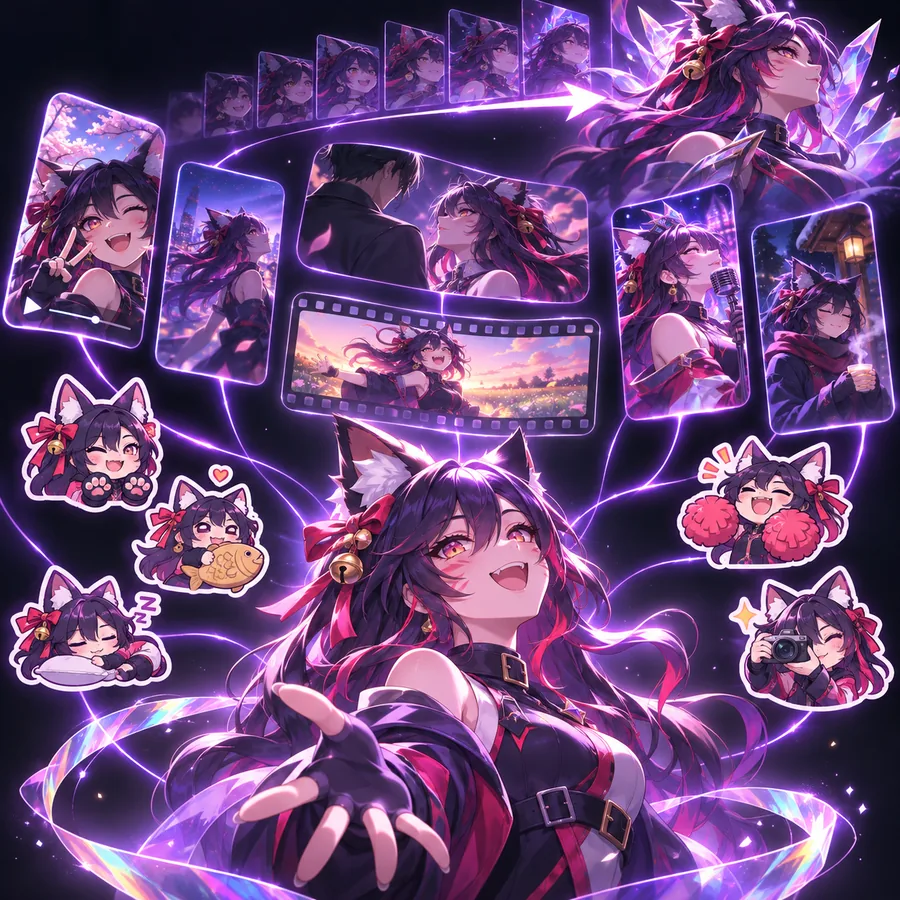 03 · Context
Step 3
Once the action is clear, add the setting and visual treatment that should travel with it. This keeps the prompt specific while preserving a coherent atmosphere.
Continue exploring
Move from motion direction to a broader workflow when your idea needs more control over the complete video concept.
Make the distinction
Both routes can support a video idea, but they organize the first prompt around different decisions.
| Motion control entry | General video entry | |
|---|---|---|
| First decision | What should move and how? | What complete video should be created? |
| Best starting point | A camera, subject, or scene action | A full concept, subject, setting, and treatment |
| Prompt emphasis | Direction, pace, path, and visual relationship | Story, style, composition, and overall scene |
| Useful for | Movement studies and shot direction | Broader concept development |
| Revision style | Adjust the action while keeping context stable | Revise multiple creative ingredients together |
| When to switch | When the scene needs a wider production brief | When movement becomes the central unresolved decision |
Take the next step
Give roboneo one subject, one visible action, and enough scene context to make the direction understandable. Start focused, review the result, and expand the prompt only when the next creative decision is clear.
Questions answered
These answers cover the practical questions that come up when using a motion-focused entry point.
It is a focused way to describe movement in a video idea, such as a camera move, subject action, reveal, or change in viewpoint. It is most useful when motion is the main creative decision you want to clarify first.
Name the subject, state one observable movement, and then add the setting or visual mood. Specific verbs such as orbit, pan, follow, rise, rotate, or pull back are usually clearer than broad words like dynamic or cinematic.
No wording can guarantee an exact camera path or identical details in every result. Describe direction, pace, and the subject-camera relationship as clearly as possible, then refine the prompt after reviewing the output.
Choose the motion route when the unresolved question is how something should move. Choose the broader roboneo ai video generator when you need to define the complete concept, including the subject, story, style, and scene treatment.
Yes, it can be a useful starting structure for describing a product rotation, a subject entrance, a reveal, or another visible action. Keep the product or subject concrete and explain what should remain in view while it moves.